
Faculty and Administrative Support Services (FASS) offers faculty and staff a wide variety of support services to assist them with their daily work. Faculty and staff have the added convenience of being able to have their work directly routed from FASS to Print Plus thereby taking advantage of the many additional services offered (see Related Links in the FAQ section for details). The highly skilled staff in FASS work hard to consistently produce professional, high quality products.
All faculty and staff are encouraged to stop by A107 and discuss how FASS can assist them. It may be trying to find time to type correspondence, utilizing a website to support in-class delivery of course materials, preparing for a conference, or advertising upcoming courses! The services are many, the staff are highly qualified and they’re always eager to help.
FASS is here to make busy lives better, so reach out to them today and discover the possibilities!
Faculty and Administrative Support Services (FASS)
T: 705-474-3450 x 4373
F: 705-474-1947
Office: A107
General Inquiries: fass@nipissingu.ca
Telephone Inquiries: telephones@nipissingu.ca
Faculty and Administrative Support Services FAQ
Work Completion Timelines
| Type of Work | Expected Turnaround Time |
|---|---|
| Correspondence (e.g. letters, memos) | Half-day |
| Typing (e.g. course outlines, tests, OCR, notepads) | Minimum of 3 days |
| Multiple Choice Scanning | Minimum of 3 days |
| Graphic Design (e.g. brochures, posters) | Assessed on an individual basis |
| Projects/Reports | Assessed on an individual basis |
| Web Updates | Minimum of 3 days |
| Mobile Device Travel Packages | Minimum of 3 days |
| Telephone Updates | Assessed on an individual basis |
| Online Event Registration | Assessed on an individual basis |
*all times listed are dependent upon prior work commitments
Supported Software
- Microsoft Office Suite
- Sharepoint
- Adobe Acrobat
- Adobe Creative Cloud (InDesign, Illustrator, Photoshop)
- Remark
- Duxbury
Please note that FASS does not support the use of Canva. Canva regularly produces subpar quality graphics that often do not print correctly. The use of Canva often results in FASS staff having to recreate the document from scratch in order to make any changes to it.
After Hours Drop-Off
FASS is open Monday – Friday, from 8:30 am – 4:30 pm during the regular school year, and from 8:30 am – 4:00 pm during the summer. If you need to drop off work to FASS outside of regular business hours, please place your items in an envelope and use the drop slot beside the side door of A108.
Document Storage
FASS will maintain the files that we create for you in our filing system. If you require updates to a document that was previously produced in FASS, please do not make changes to the PDF, convert the PDF to a Word document, or recreate the file. By requesting the changes be made by FASS, you’re ensuring the highest quality of finished product, that Nipissing University brand standards are being adhered to, and that the copy on file will be up-to-date if staff changeover ever occurs.
Digital Signatures
Digital signatures can be created using a scanning station. Simply sign a piece of paper and scan it to email. Send the scanned file to FASS and they can change it into an image file for you to use on electronic documents.
Telephone Services
Telecommunications is a service offered by the Faculty and Administrative Support Services office. FASS administers all device and account changes for Nipissing University owned mobile devices and also oversees all changes to on campus handsets. Please contact FASS at telephones@nipissingu.ca for assistance pertaining to any Nipissing University phone service.
Mobile Phones:
Related Links
Print Plus
Fast, friendly & affordable service for all your copying & binding needs
University Technology Services
For all your technology needs
Harris Learning Library
E-Resources, journals, Refshare, etc.
Microsoft Teams Phone
MS Teams Phone User Guide
Download the MS Teams Phone User Guide here.
What are we doing?
We are migrating Nipissing’s aging campus telephone system to the modern and popular MS Teams Phone solution. This platform is part of our existing Microsoft campus license agreement.
What is MS Teams Phone?
Check out the videos at this link for a brief overview of MS Teams Phone.
When is this happening?
Launch - July 15th
MS Teams Phone has gone live as of July 15th. Original desktop phones will no longer be functional once the process is complete. More information on desktop phone collection will be provided closer to the launch date.
How do I get support and provide feedback?
For the most efficient support, please enter a ticket at helpdesk.nipissingu.ca
You can email us at telephones@nipissing.ca.
You can call us at (705) 474-3450 extension 4373.
You can also drop by the FASS office (A107).
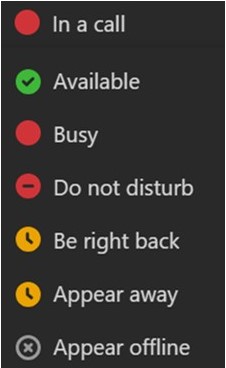
I am getting work calls outside of my work hours
Remember to change your MS Teams’ status to Appear Away or Appear offline.
What do I do if I have unique telephony needs?
If you have any unique telephony needs beyond simply one-to-one calling and receiving, such as shared responsibility for a departmental extension, please notify us at telephones@nipissingu.ca. We are grateful to all those who have already connected with us in this regard.
Will I still have my desktop phone?
Most users will no longer have the need for a physical phone with this new system and will now use a headset when needed. We are working closely with areas who have unique telephony needs and require a physical MS Teams telephone.
Will I get a headset?
Although a headset may be useful in a front-line or shared office space environment, a headset is not necessary for using MS Teams Phone as long as your computer already has a built-in microphone. Many employees may already have a headset to accommodate conference calls and other online activities that can also be used with the MS Teams Phone solution. Any headset with a microphone will work for this purpose.
UTS will have a limited supply of new headsets available for those who do not have one already and think it would be necessary for their workspace. If there is a requirement for a specialized headset to enable specific functions, UTS will provide this.
Can I answer my supervisor or co-worker’s extensions in their absence? What about shared departmental extensions?
Shared departmental extensions can be supported in Microsoft Teams through the Shared Line Appearance feature. Shared Line Appearance handles multiple calls on a specific number called a shared number. Shared Line Appearance can configure any enterprise voice enabled user as a shared number with multiple lines to respond to multiple calls. The calls are not actually received on the shared number, instead they are forwarded to users that act as delegates for the shared number.
Any one of the delegates can pick up the call while the rest of the delegates get a notification on their phone about who picked up the call and which line has become busy as a result.
How does voicemail work? Can users customize their outgoing message? Can voicemails be sent to email?
MS Teams Phone has similar features to our current system, allowing users to customize their voicemail. Voicemail is sent to email as a Wav file attachment.
What level of privacy can an employee expect with this new system?
MS Teams phone calls are private. There is no capability in MS Teams that would allow anyone outside a private call to listen in to the conversation.
Are computers mandatory to use MS Teams Phones?
In most instances, MS Teams Phone will be used from your work computer using a headset if needed, similar to an MS Teams or Zoom call. There are special circumstances for which a desktop phone is necessary as noted above.
Can a person from outside the institution use a landline to call a person using MS Teams Phone?
Persons calling the University from a landline will have a similar experience to their current experience calling into the University.
Do you have to be logged in to Teams to know that someone is calling you?
Yes, MS Teams must be running to know that someone is calling. NU Windows-based computers are imaged in a manner that launches MS Teams automatically upon startup.
How can employees contact each other if the internet is down?
MS Teams Phone will be offline in an internet outage, similar to all other MS solutions. NU has established robust solutions, procedures, and protocols to minimize internet disruptions. This new solution is far more resilient than our existing obsolete telephony system. Cellular devices will still function for calling.
What if a user wants to make a long-distance call?
The same long-distance features will apply to the MS Teams Phone system.
Why are we doing this?
Due to the age of our existing telephone system, which exceeds 15 years, we face significant challenges in delivering adequate user support and obtaining vendor support, including acquiring replacement hardware. The transition to the Microsoft platform enables us to provide increased resiliency, security, compatibility, and support.
Are other universities and colleges also moving to MS Teams Phone?
Many other universities and colleges have transitioned to MS Teams Phone, including Canadore College, who made the transition this winter.
What primary vendors are you working with during this project?
UTS is collaborating with Bell Canada and Microsoft during this project.
What are the main benefits of MS Teams Phone versus a traditional telephony solution?
MS Teams Phone is a communication platform that offers a variety of benefits, including:
- Seamless integration: MS Teams Phone integrates with Microsoft Office 365, allowing you to access all your contacts and calendar events easily.
- Cost savings: MS Teams Phone offers a cost-effective solution, eliminating the need for traditional phone systems, including expensive hardware.
- Improved collaboration: MS Teams Phone allows for real-time collaboration, instant messaging, and video conferencing, which can improve communication and productivity.
- Enhanced mobility: With MS Teams Phone, users can make and receive calls from anywhere, as long as they have an internet connection.
- Advanced features: MS Teams Phone offers advanced features such as call recording, voicemail, call forwarding, and auto-attendants.
- In addition, MS Teams Phone offers enhanced spam protection, transcription between like platforms, and managing call queues.
How does emergency calling work now?
Whether working on-campus in your office or remotely, when you dial 911 the 911 operator will ask you to provide your address.
When in your on-campus office, the MS Teams client can also detect your location if you are unable to talk. You can see this under the dial pad in the MS Teams Calls section. Additionally, On-Campus Security will be notified that you made an emergency call and will be able to see both your phone number and location.
When working remotely, the MS Teams Phone solution cannot detect your location if you are unable to talk. You need to enter it manually for the 911 operator to know your location. Until you do this, your location under the dial pad will show “Location not detected”.
The User Guide provides instructions on how to set your location when working remotely.
As a reminder of this, there is a top banner that shows in the MS Teams Calls section that states “To ensure proper routing of 911 calls, please update your MS Teams location when working remotely, and be prepared to provide the exact address to the 911 operator if requested.”
This FAQ page will be updated regularly as the project progresses.
Last Reviewed: July 15, 2024.